
HP 952 series printhead error code 0xc19a0023
Title: So, about the HP 952 series printhead error code 0xc19a0023...
Please do not immediately condemn the printhead to be scrapped just because this code appears.
To prevent unnecessary part replacements in the field, the proper practical procedure is to first accurately attempt cleaning the printhead contacts and reinstalling it up to 3 times. Only if the error persists after this should you declare it a "genuine printhead defect."
Is the printhead actually dead, or did the printer simply "fail to recognize" it due to a contact issue?
0xc19a0023 Code Analysis
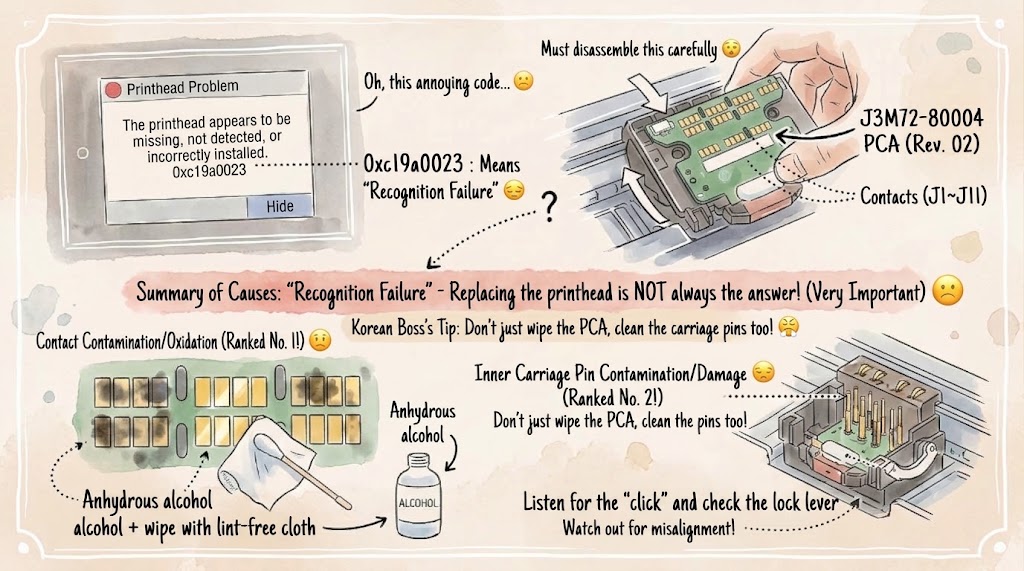
This code is very commonly reported on the HP OfficeJet Pro 8710. Summarizing cases from the official HP support community, the bottom line is that "always replacing the printhead" is not the correct answer. This is a "recognition failure" code, not a "confirmed defect" code — meaning you need to distinguish whether the printhead is actually dead or if the printer simply "failed to recognize" it due to a poor connection.
▶ Priority of Causes (Based on reporting frequency)
-
Contact Contamination/Oxidation (Most Common)
-
Frequently occurs after long periods of use or when restarting after being unused (stored) for a long time. Ink residue, dust, or an oxidation film gets stuck on the electrical contacts between the printhead and the carriage, preventing communication.
-
-
Installation Misalignment
-
The printhead is not fully secured by the lock lever or is slightly misaligned.
-
-
Foreign Objects/Jams in Carriage Path
-
Paper scraps or debris in the path where the printhead carriage moves, preventing it from finding its proper position.
-
-
Actual Printhead Hardware Defect
-
If the issue persists after taking all the measures below, it falls into this category.
-
▶ Troubleshooting & Solutions
-
Hard Power Reset: Disconnect power completely and wait for over 60 seconds (resets the internal carriage controller).
-
Remove Printhead: Open the carriage door and use the release latch to remove the printhead.
-
Clean Contacts: Use anhydrous (isopropyl) alcohol and a lint-free cloth to clean both the copper contacts at the bottom of the printhead and the contact pins inside the carriage.
-
Note: If you only clean one side, the issue often reoccurs.
-
-
Reinstall: Ensure you hear a "click" and that the lock lever is fully pressed down when reinstalling.
-
Repeat this process up to 3 times (the recommended number of attempts by the official HP community).
-
-
Visual Inspection: Visually check if there is any debris in the carriage movement path.
-
If it still doesn't work, try updating to the latest firmware (rarely, this is reported as a controller-printhead communication logic bug).
-
0xc19a Prefix Series & Similar Errors
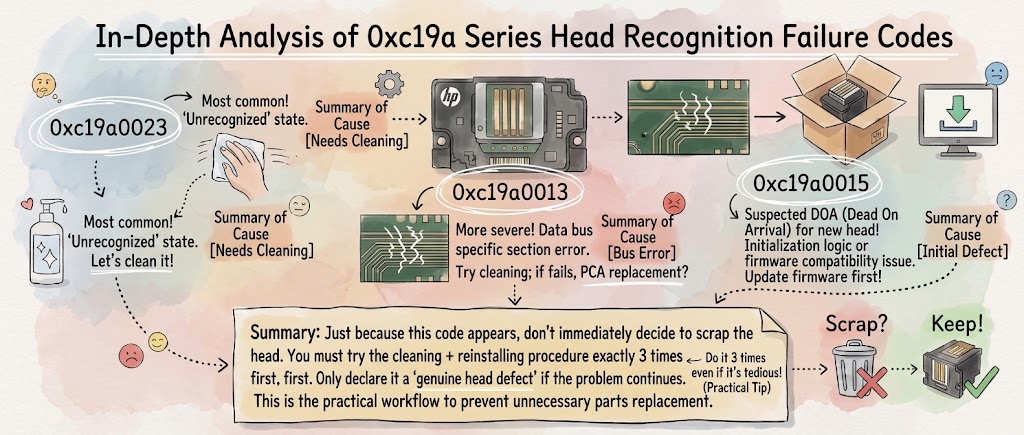
The 0xc19a prefix series is a common "printhead recognition/communication" error category used across carriage-type inkjets like the HP OfficeJet Pro 8610/8700/8710/6978.
-
0xc19a0023: 😟
-
Meaning: Printhead in an 'unrecognized' state.
-
Main Cause & Location: Data failure primarily due to contact contamination.
-
Top Priority: Attempt cleaning. (Korean Pro Tip: Using a contact cleaner followed by wiping it with alcohol yields excellent results.)
-
Frequency: Highest.
-
-
0xc19a0013: 😢
-
Meaning: Similar to 0xc19a0023, but a more severe data error.
-
Main Cause & Location: Problem occurring in a specific section of the data bus.
-
Top Priority: If cleaning fails, considering a PCA replacement is mandatory.
-
-
0xc19a0015: 🤔
-
Meaning: Cannot recognize a new printhead / DOA (Dead on Arrival).
-
Main Cause & Location: Mostly occurs when installing a new PCA. Possible initialization logic failure or firmware version compatibility issue.
-
Top Priority: Try a firmware update first. For this code, a firmware update takes priority over cleaning.
-
Add Comment